
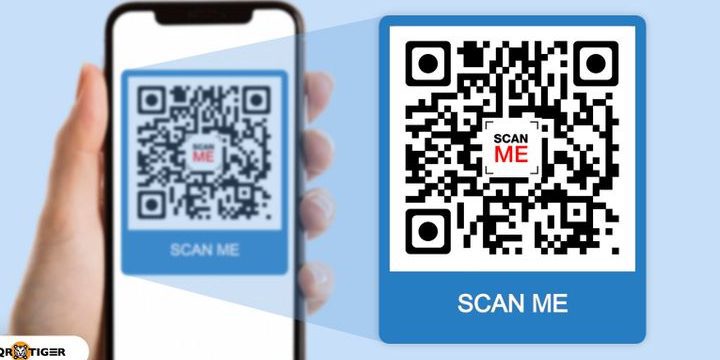
Unlock the new superpower of your smartphone with this game-changing QR code trick! No internet connection? No problem! Forgot to scan the code? Don’t worry! By utilizing the Google Lens application, you can now scan a QR code by simply taking a screenshot or an image. Here’s how it works: Install Google Lens on your phone, take a screenshot of the QR code, open Google Lens, select import, and voila – Google Lens will automatically recognize and scan the QR code! It’s the ultimate life-hack for all QR code enthusiasts. With this trick, you can scan the code anytime, anywhere, even in situations where you are experiencing issues with the device’s camera. And there you have it! With these simple steps, you can now unlock the power of QR codes in ways you never thought possible!
QR Codes and Screenshots
QR codes have become increasingly popular in recent years, and for good reason. These codes offer an easy and efficient way to access content, whether it is a website, video, or even contact information. While QR codes have traditionally been scanned from a printed surface, it is becoming more common for people to encounter codes on digital media, such as social media or email. This has led many to wonder if scanning a QR code from a screenshot is possible.
How to Scan a QR Code from a Screenshot
The good news for those who want to scan a QR code from a screenshot is that it is entirely possible with the help of the Google Lens application. Google Lens is a powerful computer vision tool that can recognize objects and text captured by a phone’s camera, including QR codes. To use Google Lens to scan a QR code from a screenshot, simply open the application and refer to the image on your phone. Once the screenshot has been selected, Google Lens will reveal the information contained within the code.
Understanding the Google Lens Application
Google Lens was first introduced in 2017 and has since become one of the most useful tools available on mobile devices. The application uses machine learning and image recognition technology to provide real-time information about the objects and text in a user’s environment. In addition to scanning QR codes, Google Lens can identify plants, animals, and landmarks, translate languages, and access product information.
Steps to Scan a QR Code from a Screenshot
Using Google Lens to scan a QR code from a screenshot is a straightforward process that requires only a few steps. Here is how to do it:
- Open the Google Lens application on your phone
- Select the image or screenshot containing the QR code
- Position the QR code within the camera viewfinder in Google Lens
- Wait for Google Lens to recognize the QR code and display its content
Benefits of Scanning a QR Code from a Screenshot
Scanning a QR code from a screenshot offers several advantages over scanning a printed or physical code. One of the most significant benefits is convenience. With a screenshot, you can save the QR code for later use, eliminating the need to carry around a printed code or revisit the original source of the code. Additionally, scanning a QR code from a screenshot allows you to quickly share the code with others via messaging or email.
Things to Keep in Mind while Scanning QR Codes from Screenshots
While scanning a QR code from a screenshot is convenient and easy, there are certain things to keep in mind to ensure success. Firstly, the quality of the screenshot will play a significant role in the scanning process. If the image is blurry or distorted, Google Lens may have difficulty scanning the QR code. Additionally, it is essential to make sure that the code is right-side-up and that no part of the code is cut off.
Comparison of Scanning QR Codes from Screenshots vs. Printed Codes
While scanning a QR code from a screenshot is a convenient method, it is worth noting that there are some differences between scanning a digital code and a printed code. For example, printed codes may be easier to scan in bright sunlight, whereas a digital code may be more challenging to scan in the same conditions due to glare or screen brightness. Additionally, printed codes may be more durable than digital codes, which may be at risk of being deleted or lost if not saved correctly.
Conclusion: Scanning QR Codes from Screenshots is Convenient and Effective.
In conclusion, scanning a QR code from a screenshot is entirely possible with the help of the Google Lens application. With just a few clicks, you can access the content contained within a code and save it for later use. While there are some differences between scanning digital codes and printed codes, the convenience and flexibility of scanning a QR code from a screenshot make it a valuable tool for accessing information quickly and conveniently.



