
Want to share a webpage quickly and easily without the hassle of typing out the lengthy URL? Look no further than QR codes! With a simple scan, you can share webpages with others without the need for typing or copy-pasting. Here’s how to create a QR code on your Android device:
If someone else shares a QR code with you, don’t stress! Just download a QR code scanner app and scan away. It’s a quick and easy way to access websites and information without the hassle of typing. With these simple steps, you’ll be a QR code pro in no time!
How to Send a Scannable QR Code With Your Android Smartphone or Tablet
Sharing Webpages with QR Codes
QR codes are a handy way to share webpages with friends and colleagues. They are scannable codes that can be quickly and easily read by smartphones and tablets. Simply scanning the code will take you directly to the webpage, without the need to type in the URL. In this article, we will show you how to send a scannable QR code with your Android smartphone or tablet.
Using QR Codes with Android Smartphones and Tablets
Android smartphones and tablets have built-in QR code readers that allow you to scan codes quickly and easily. You can also create your own QR codes, and share them with others. QR codes can be used for a wide range of purposes, including sharing webpages, contact information, and even Wi-Fi passwords.
Launching Chrome to Create and Share QR Codes
Creating and sharing QR codes using Android smartphones and tablets is easy with Google Chrome. Here’s how to do it:
- Launch Google Chrome on your Android smartphone or tablet.
- Navigate to the webpage you wish to share.
- On the toolbar to the left, tap “More” and then select “Share”.
- Select “QR Code”.
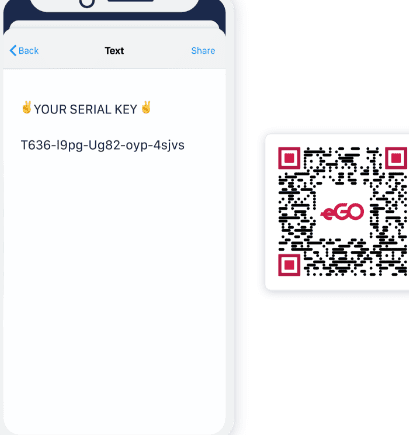
- Follow the on-screen directions to share the pages and download the QR code.
The Toolbar and QR Code Option
When you tap “More” on the toolbar, you will see a number of options for sharing the webpage. The “QR Code” option allows you to create a QR code that can be easily scanned by other devices. This is a quick and easy way to share webpages with others without having to type in the URL.
Following On-Screen Directions for QR Code Sharing
Once you have selected “QR Code”, you will be prompted to follow a few on-screen directions to share the webpage and download the QR code. This usually entails selecting an app that you want to use to share the code, such as WhatsApp or Facebook, and then sending the code to the recipient. The recipient can then scan the QR code using their own device to access the webpage directly.
Scanning QR Codes with Your Mobile Device’s Camera
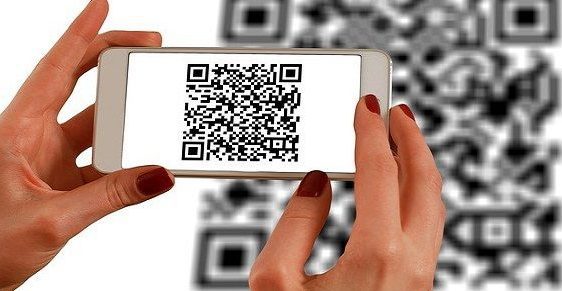
Scanning QR codes is easy with your mobile device’s camera. Simply open your camera app and point it at the QR code. Your device will automatically recognize the code and prompt you to open the associated webpage or app. This is a quick and convenient way to access information, without the need to type in URLs or download apps.
Alternate Methods for Scanning QR Codes
In addition to using your device’s camera, there are a number of apps available for scanning QR codes. These apps typically offer additional features, such as the ability to scan barcodes, track inventory, or manage contacts. Some popular QR code scanner apps include QR Code Reader, Barcode Scanner, and QRbot.
In conclusion, sharing webpages using QR codes is a quick and easy way to share information with others. With Android smartphones and tablets, you can easily create and share QR codes using Google Chrome. And with your device’s built-in camera, you can quickly scan any QR code you come across. So the next time you need to share a webpage or access information, consider using a scannable QR code for convenience and ease of use. Try it out today!