
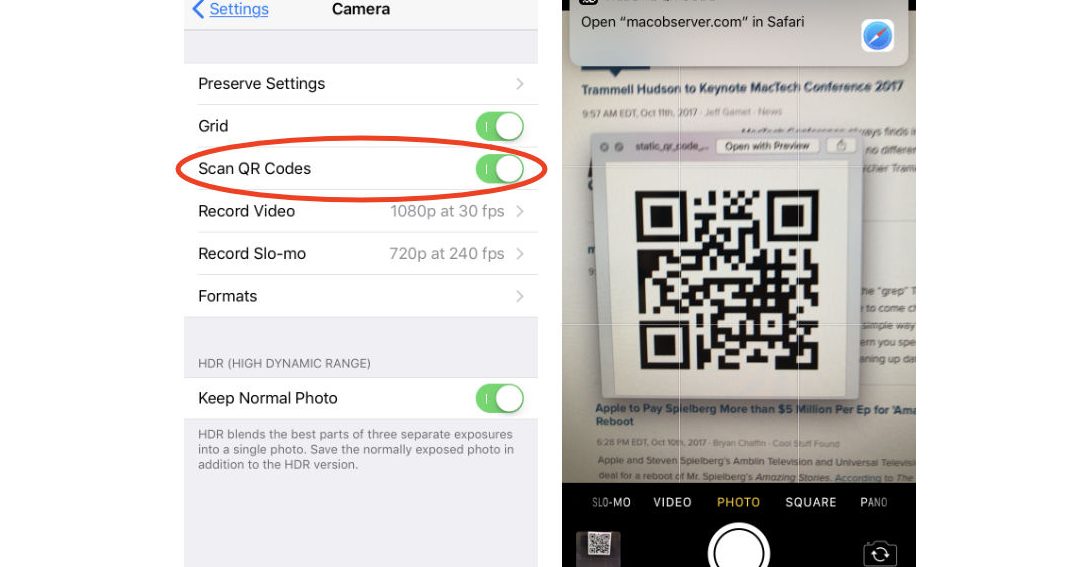
Ready to start scanning QR codes like a pro? Good news: It’s a lot simpler than you might think. With just a few clicks, you can enable the QR reader on your smartphone’s camera and enjoy a world of convenience at your fingertips. Here’s how to do it:
- Step 1: Navigate to your phone’s Settings app.
- Step 2: Look for ‘System Apps’ and tap it.
- Step 3: Find ‘Camera’ and select it.
- Step 4: Click ‘Scan QR code’ on the Camera app settings screen.
- Step 5: Switch on the feature and you’re good to go!
That’s all there is to it! By following these simple steps, you’ll be able to start scanning QR codes like a pro in no time. Whether you’re accessing important information, discovering new websites or viewing menus at your favorite restaurants, QR codes make everything quicker and easier. So why wait? Unleash the true power of your phone’s QR reader today!
Enabling the QR Reader on Your Phone: A Step-by-Step Guide
QR codes have become a popular way of accessing information, and almost everyone possesses a smartphone that can read these codes. However, the QR reader is not always enabled by default, and many users don’t know how to activate it. This step-by-step guide will help you enable the QR reader on your phone so you can enjoy the convenience of scanning QR codes.
Accessing the Settings
Enabling the QR reader on your phone requires a few simple steps, and the first step is accessing the Settings. Depending on the type of phone you’re using, the Settings app may be found on the home screen, in the app drawer, or in the notification panel. Once you find the Settings app, open it and scroll down to the system category. This category may be labeled differently depending on the phone model or operating system.
Selecting System Apps
Once you locate the system category, you need to select System Apps. This section contains apps that are essential to the operation of your phone, and you should exercise caution when making any changes. Once you select System Apps, you will be taken to a list of apps that are installed on your phone. Scroll down until you find the Camera app and select it.
Tapping on Camera
After you select the Camera app, you will be taken to a screen that displays information about the app, including storage usage and permissions. Scroll down until you find the option that says Scan QR Code. This option may not be visible at first glance, but you can easily locate it by scrolling down. Once you find the option, toggle it on to enable the QR reader on your phone.
Toggling on Scan QR Code
Enabling the QR reader on your phone is as simple as toggling on the Scan QR Code option. This option allows your camera to scan QR codes and access the information they contain. Once you toggle on the Scan QR Code option, exit the Settings app and open the Camera app. You will notice that the camera has been augmented with a QR code scanning feature that can now be used to scan QR codes.
Why Use QR Codes and QR Readers?
QR codes have become increasingly popular because they offer a convenient and efficient way of accessing information. With QR codes, you can access websites, initiate phone calls, send messages, and make payments. QR codes can be found everywhere, from billboards and magazines to business cards and product packaging. QR readers make it easy to scan these codes and access the information they contain.
Different Ways to Access QR Reader on Different Phone Models
While the above steps give a general guide to enable the QR reader, different phone models may have different ways to access the QR reader. Some phone models have the option located in the camera app itself, and other phones may require the download of a separate QR reader app. Check your phone’s user manual or do a quick online search to find out the specific instructions for your phone model.
Conclusion
Enabling the QR reader on your phone is simple, and once you’ve followed the above steps, it’s easy to scan QR codes and access the information they contain. QR codes have become ubiquitous, and they offer a convenient and efficient way of accessing information. With the QR reader enabled, you won’t miss out on the benefits that QR codes provide.



